Workspace Support
Client access guide for Google integrations
Use this page if your company is giving workspace access after signing a contract. You do not need to sign in to the workspace for this step. This guide shows exactly where to click in your own Google accounts so your team can grant the access needed for delivery.
Workspace access email
Use this email address anywhere a Google screen asks you who should receive access:
This must be the exact Google account your team will use later inside the Google connect popup. If the client adds a different address, the Google connect step will not see the granted properties or locations.
If another person manages Google for your company, forward this page to them and ask them to complete the same steps.
Quick checklist
- Add the workspace access email in Google Search Console.
- Add the workspace access email in Google Analytics 4.
- Add the workspace access email in Google Business Profile.
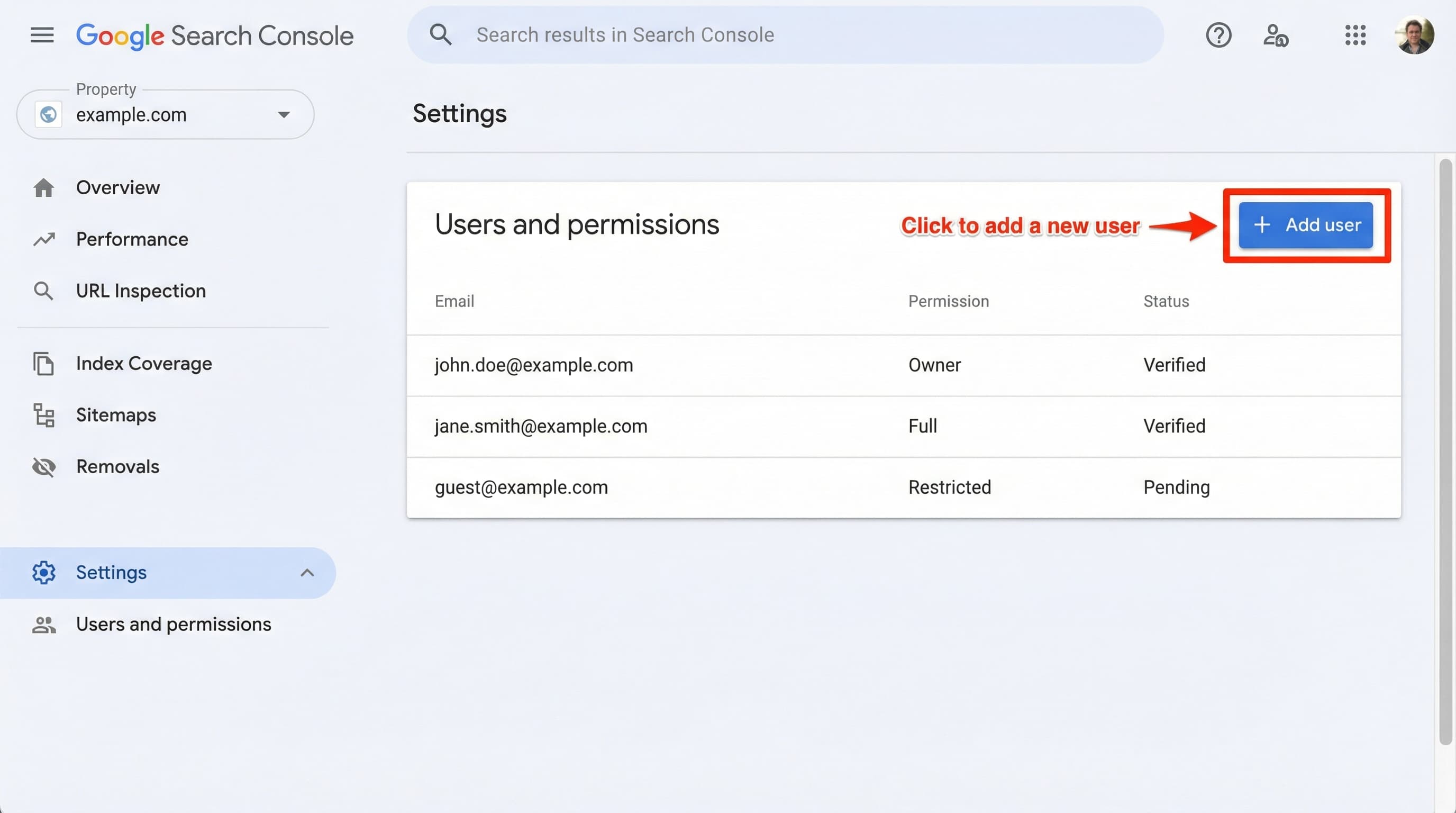
Google Search Console
Follow these exact clicks:
- Choose the Google account that owns or has access to the Search Console property.
- Open Google Search Console.
- Use the property selector in the top-left and choose the website property that matches your domain.
- In the left navigation, click Settings.
- On the Settings page, click Users and permissions.
- Click Add user.
- Paste [email protected].
- Choose Full or Owner access.
- Click Add.
If you manage more than one property, make sure you are inside the exact property that matches the website your workspace team is working on.
Google Analytics 4
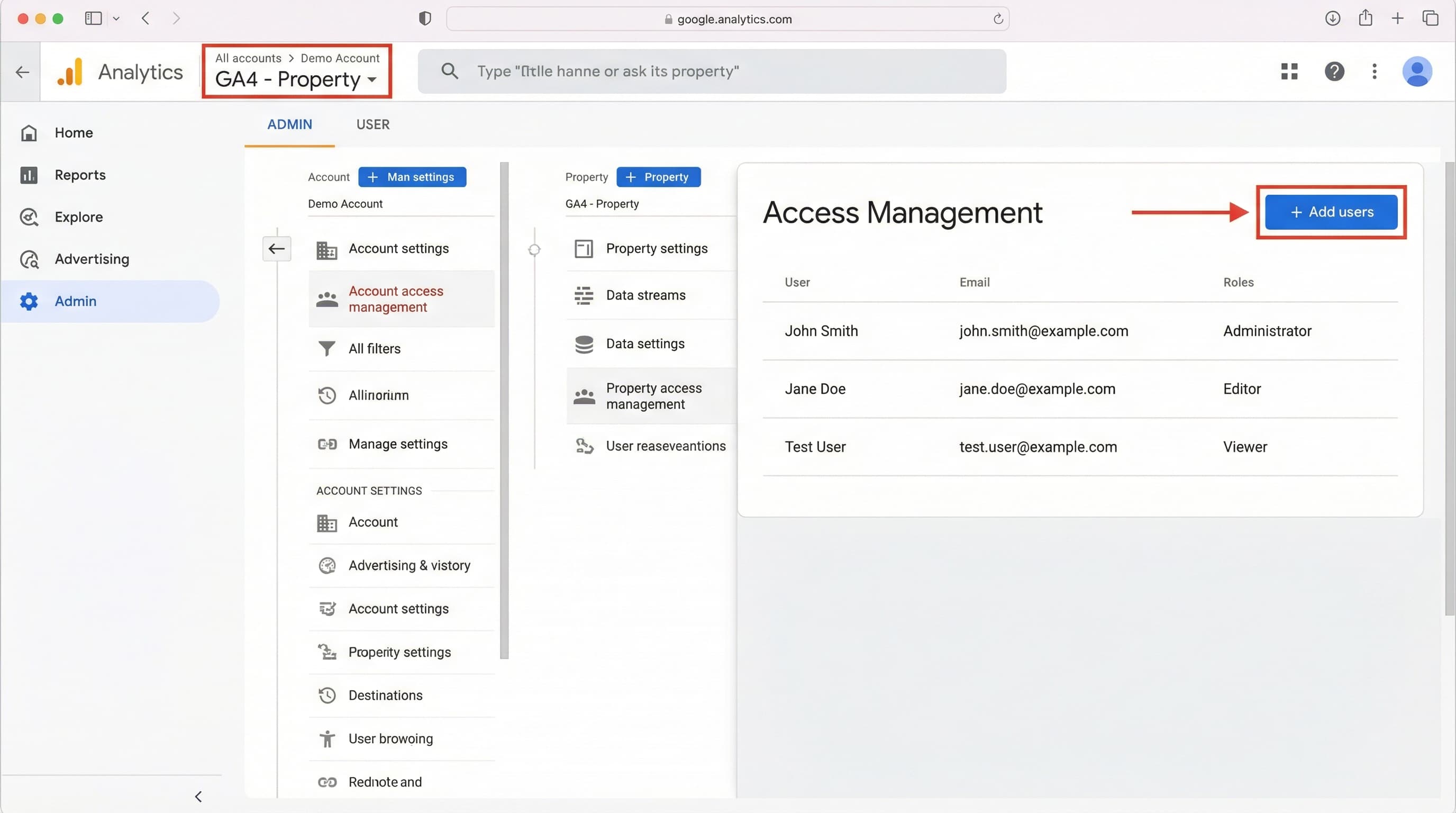
Follow these exact clicks:
- Choose the Google account that owns or has access to the GA4 account/property.
- Open Google Analytics 4.
- Use the account and property selectors to choose the account and property for your website.
- Click the Admin gear in the bottom-left.
- Open Account Access Management or Property Access Management.
- Click the plus button or Add users.
- Paste [email protected].
- Grant Viewer or Analyst access. If your policy allows it, Admin access is preferred.
- Click Add.
If your Google Analytics account uses a slightly different menu label, look for any Access Management screen under Admin.
Google Business Profile
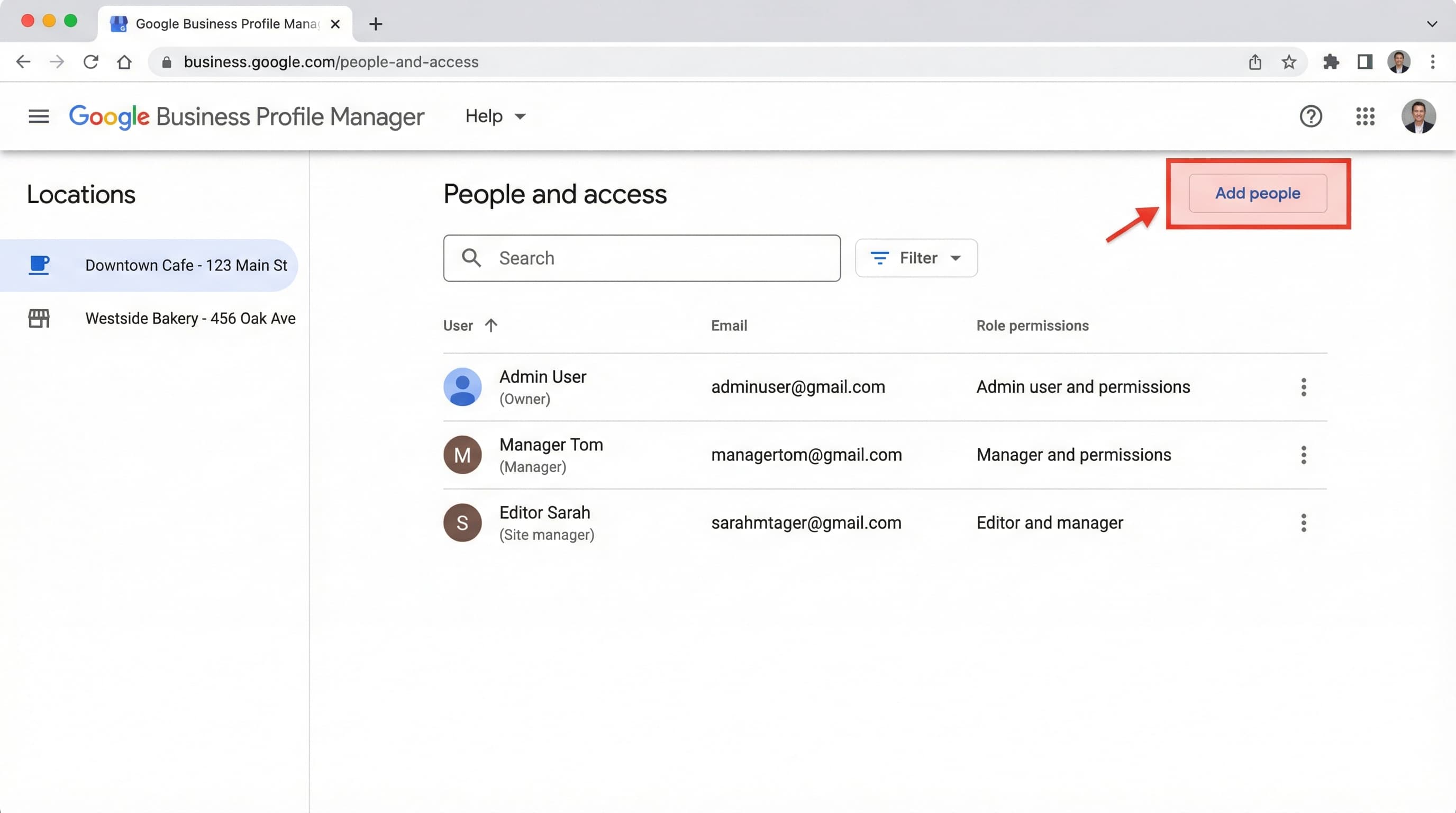
Follow these exact clicks:
- Choose the Google account that owns or has manager access to the Business Profile location.
- Open Google Business Profile Manager.
- Choose the business or location that matches your storefront or service area.
- Open Settings.
- Click People and access.
- Click Add.
- Paste [email protected].
- Grant Manager access. Use Owner only if your company policy requires it.
- Click Invite.
If you manage multiple locations, repeat the access step for each location your workspace team should support.
What to send back to your workspace team
When you finish the steps above, reply to the onboarding email with all of the following:
- Confirm that Google Search Console access was granted.
- Confirm that GA4 access was granted.
- Confirm that Google Business Profile access was granted.